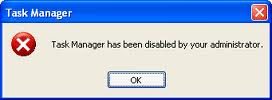
indows Task Manager is used to view details about processes running on your computer. Since it can be used to terminate programs that are misbehaving or are viruses disguised in the form of harmless programs, most spyware and viruses disable it to prevent themselves from being closed through it. Some administrators also disable Task Manager to prevent users from closing important security programs like antiviruses and anti-malwares. In such situations, running the Task Manager will give the "Task Manager has been disabled by Administrator" error. However, there are some techniques you can use to re-enable task manager and close those harmful programs manually. This article contains few such simple techniques you can use to regain access to Task Managing privileges.
Enable Task Manager from Registry in Windows 10, Windows 8, 7, or XP
Registry Editor is an inbuilt Windows tool that is used to modify registry keys which tell Windows how it should work. A simple registry modification can be used to bypass the Task Manager block. To do so, just follow the steps:-
Click on Start. Go to Run. Alternatively, use Windows key+R keyboard shortcut.
Type regedit and press Enter. Registry Editor will start. If Registry Editor is also disabled, you will first need toenable registry editing.
Through the left hand navigation pane, navigate to HKEY_CURRENT_USER\Software\Microsoft\ Windows\ Current Version\Policies\System. If the System key is not there, you will need to create it.
In the work area, locate "DisableTaskMgr". If this value is not there, you will need to create a new DWORD value called DisableTaskMgr. Double click on it. A window will pop up.
Enter its value data as 0 and press OK.
Close Registry Editor. If Task Manager is still disabled, restart your computer.
Enable Task Manager from the Group Policy Editor (Gpedit.msc)
Windows Task Manager in Windows 7
Group Policy Editor is a feature in Windows which is used to edit local policy settings. It can also be used to enable Task Manager. To do so, just follow the steps given below:-
Open Start Menu. Windows XP users click on Run. Windows 10, Windows 8.1, Windows 8, Windows 7 and Vista users, go to Search. Alternatively, press Windows key+R.
Type gpedit.msc and press Enter. Group Policy Editor Window will show up.
From the navigational pane at the left hand side, go to: User Configuration>Administrative Templates>System>Ctrl+Alt+Del Options.
In the work area, double click on "Remove Task Manager" and set its value to Disabled or Not Configured.
Restart your Computer or Log Off and Log back On to apply the changes.
Group Policy Editor is not available on home editions of Windows.
Enable Task Manager by Running a CMD Command
Command Prompt can also be used to directly enable Task Manager.
Run TaskManager.bat as Administrator if you use Windows 10, Windows 8, Windows 7 or Windows Vista. In Windows XP, simply open the file. A command prompt window will flash for a second and then disappear indicating successful execution. After running the batch file, you will be able to again use Task Manager. If Task Manager is still not available, restart your computer.
Create a Registry(.reg) file for enabling Task Manager
If you are unfamiliar with manually editing the Registry, you can create a Registry file which will automatically modify the Registry Key to re-enable Task Managing. To create one such file:-
Open Notepad or any other text editor.
Copy the code given below and paste it as it is in it.
Windows Registry Editor Version 5.00 [HKEY_CURRENT_USER\Software\Microsoft\Windows\CurrentVersion\Policies\System] “DisableTaskMgr” =dword:00000000
Save the file as Enable Task Manager.reg or *.reg.
Open the file by double clicking on it.
Registry Editor will ask you for confirmation. In the confirmation Window, click Yes.
Task Manager would immediately be accessible. If it is not, restart your computer.
Skype has undoubtedly become an indispensable communication tool that allows you to stay connected with your friends, relatives and professionals via video chatting. The Microsoft offering is today, one of the most widely used and appreciated communication software around the globe. It even allows you to access your Facebook in the latest version. However, when you are signed into Skype, the Skype icon is displayed in the Windows taskbar. The status icon is displayed as a blue colored cloud embossed with letter ‘S’ in the system tray at the bottom of your screen. If you try to close this Skype window that appears there, the logo just refuses to disappear. If you wish, you can remove the Skypetaskbar icon and minimize its to System Tray in Windows 8, by following these steps.
Minimize Skype to System Tray
To minimize Skype to System Tray, you need to dig deep in the settings that hides the solution under a bunch of menus. So, launch Skype in the first place and head towards Tools. Then, navigate to ‘Options’.
Next, select Advanced options from the menu column on the right. It can be found at the bottom.
Thereafter, under the Advanced Setting uncheck the option that reads as ‘Keep Skype in the Taskbar While I’m Signed in’.
When done, save the setting. Also, close the Skype window and you will observe that Skype will close to the System Tray in the lower right corner, just adjacent to the Notification Area. If you have any conversations open, it will be displayed on the taskbar. If you’re not using, it is advisable to close the setting.
It is annoying for many to see even the most recent version of Skype exhibit this behavior. If the above trick has worked for you and has adequately addressed your issue, please drop a word in the comments section below or suggest some other method, if any.
Following my unboxing video, today I am going to show you how to set-up the Samsung SmartThings. When we about smart home, many of us will think that it’s a thing of the future, probably even next century, while the rest think that smart home need several men in several vans, took days to set-up and cost thousands. Samsung SmartThings are none of those. You can buy them today and you don't have to sell you kids to pay for it. It takes no IT or engineering knowledge to set-up.
If you're a system administrator working with remote desktop a lot within a somewhat restrictive domain environment, you may be frustrated by the following message:
There are a few tutorials on the net that say to remove this you just need to go into Group Policy and disable 'Do not allow passwords to be saved', unfortunately that isn't what this error message is related to. Instead, we need to change another part of Group Policy.
Hit Win+R to bring up the 'Run' dialog, enter 'gpedit.msc' and hit OK.
Go down the tree into Computer Configuration -> Administrative Templates -> System -> Credentials Delegation.
Now, you need to allow Allow delegating saved credentials and Allow delegating saved credentials with NTLM-only server authentication. For each, you'll also need to allow a set list of servers that are explicitely allowed to save credentials, you can enter IP Addresses, Server hostnames, AD Domain name wildcards, or just any old wildcard. Since I wanted to be able to store credentials for everything, I just used a plain wildcard, and you can too!
There we go, you'll now automatically connect to your servers!
Today, I am going to do a very quick unboxing of the Samsung smart things.
I am a massive fan of the internet of things and have been watching its development over the last few years. I can’t wait for the day when everything I own connects to the web and I can control them with a simple app a on my phone.
Over the years I have purchased many smart kits or connected devices such as Tado smart thermostat, Roomba, Neto, a few ip camers, Philp hue light and Belkin WeMo switch. Most of them have their own merits but it’s a pain to control as each of them has their own apps and don’t talk to each other. Something like Roomba is even dumber. It’s not connected and works on a schedule.
Samsung smart things promise to solve this problem once for all. Currently the Samsung smart things advertised as a home monitoring and security solution. But the potential is limitless. The greatest advantage of the smart things is that it’s an open platform uses ZigBee and Z-Wave radios, and is also compatible with IP-accessible devices. So it can connect and control any devices using this technology and there are literally thousands of them, from Bose, Honeywell, Yale, LIFX, Aeon and, of course, Samsung work well with the system, and the number is keep growing.
Now let’s open it up. I’ll have the unit for the next 6 weeks so please stay tuned for more updates. I have received the SmartThings Starter Kit will cost £199 that contains a Motion Sensor, a Multi Sensor, a Presence Sensor as well a Power Outlet. In theory, the smart hub can handle as many sensors as your imagination can go, so if you want extra sensors, the Moisture Sensor costs £30, as does an additional Motion Sensor, Multi Sensor or Presence Sensor. Additional Power Outlets cost £45 apiece.
The most important part of the system is the SmartThings Hub, which acts like the brain the system and it connects wireless to an array of sensors and appliances throughout the home, allowing remote control through SmartThings app. As mentioned earlier, he Hub contains ZigBee and Z-Wave radios, and is also compatible with IP-accessible devices so the possibility is limitless. The Hub process everything locally so it's amazingly fast. It also has its own power backup, so it will continue to function if the power goes out in the house.
The motion sensor, as it's name suggests, detects movement within a given space. It also has temperature sensor built in.
The multi-sensor is primarily used to detect if something is open or closed. It also has a temperature sensor built in.
The presence sensor is a key fob that alerts the hub when it is within a specified area.
The power outlet is a plug adapter that can be controlled remotely.
Samsung SmartThings app has a version for IOS, android as well as windows mobile. So which every platform you are on, you are covered.
Here complete my brief unboxing. Stay tuned for more Samsung SmartThings over the next few weeks.
In Outlook 2013, replying to and forwarding emails by default is handled “in-line”. This means that your reply/forward message is typed within the preview pane. Previous versions of Outlook always opened a new window for your replies/forwards.
To start a new window for replies/forwards click on the ‘Pop Out’ icon that appears at the top of the preview pane once you have started a reply/forward.
However, if you want to start a new Window every time, by default, this is how you do it:
Click File, then Options
On the resulting pop up window click Mail on the right then scroll down and tick the option to ‘Open replies and forwards in a new window’
LG UNVEILS V10, A SMARTPHONE DESIGNED WITH CREATIVITY IN MIND
LG's Latest Phone Features Many Firsts: Second Screen, Dual Front Cameras, Manual Video Mode
SEOUL, Oct. 1, 2015 — LG Electronics (LG) today took the wraps off its newest smartphone featuring multimedia capabilities never before seen in a mobile device. The first of its V Series phones, the LG V10 was designed to provide a rich multimedia ex- perience — both consumption and creation — for today's social network savvy con- sumers. Distinctive new features such as a Second Screen, Dual Front Cameras and Manual Video Mode differentiate the LG V10 from the competition. All this comes wrapped in a design that utilizes high-grade stainless steel and a durable silicone skin to make the V10 one of the rare smartphones to pass drop tests for shock conducted by an independent third party.
Second Screen
Always pushing the boundaries of smartphone innovation, LG is introducing a Second Screen as an inset display above the main 5.7-inch QHD IPS Quantum Display on the V10. Working independently, the Second Screen can be set up as an "always on" dis- play to enhance the V10's productiveness all without impacting battery life. Set the Se- cond Screen to display the weather, time, date and battery icon when the main display is off. With the main display on, the Second Screen can be set to convert to a dedicated launching area for shortcuts or your favorite apps. What's more, when you're enjoying a movie or game on the V10, the Second Screen will notify you discreetly without block- ing your view when a call or text comes in. Ignoring the notification won't distract you from your enjoyment or you can pause whatever you're doing to respond.
Dual Front Cameras and Multi-view Recording
Wide angle images usually require a large, heavy lens which can distort the corners of photographs. The LG V10 features 5MP Dual Front Cameras with two separate lenses to capture standard 80 degree selfies or perfect wide angle selfies of 120 degrees, with- out the need to pan the smartphone which increases the likelihood of camera shake. For the wide angle shot, the V10 employs a sophisticated software algorithm to combine images from the two separate lenses which are just far enough apart to provide two different points of view. The ability to take group selfies without a selfie-stick has never been easier. Multi-view Recording can capture different angles utilizing all three camer- as on the V10. Select and insert the version that looks best in your masterpiece.
Video and Audio Capture Capabilities
As the LG G4 did with photography, the LG V10 offers users the ultimate in video cap- turing, editing and sharing. The V10 is the first smartphone to offer manual mode for video. First introduced for still photographs on the G4, the technology has been en- hanced to handle video recordings as well. With Manual Video Mode, budding directors can easily create professional-quality videos by adjusting options such as shutter speed, frame rate, ISO, white balance and focus while recording. Videos can be recorded in three resolutions — HD, FHD or UHD — and two aspect ratios — 16:9 standard or 21:9 cinematic. In addition to its impressive professional-level video and audio capabilities, the LG V10 offers these additional features that video content look and sound their best:
Steady Record: utilizes electronic image stabilization (EIS) optimized for recording video to neutralize shake, helping to capture sharper video footage when in motion
Snap Video: create one video by combining many shorter videos
15 sec. Auto Edit: create a short video highlight clip by automatically eliminating blurred frames and static scenes
Quick Video Editor: easily trim or change the frame rate and add after-effects, such as colors and background music
Quick Share: when finished recording, a pop-up appears on the display showing op- tions of popular social networks to make video sharing even easier and faster
Audio Monitor: adjust the sensitivity of the three microphones during video record- ing and directly monitor and control audio input, including directional recording capability to highlight sound from one particular location
Wind Noise Filter: eliminate external wind noise for high-quality sound when shoot- ing video outdoors
The V10 carries on LG's tradition of providing alternative storage options with a microSD card slot. Compatible with cards of up to 2TB, V10 owners can shoot as much 4K video as they want. And with the 3,000mAh removable battery, you can always be ready with a second or third replacement battery to pop in if you ever run low on power while shooting. And with Qualcomm® Quick ChargeTM 2.0 technology built-in, it only takes 40 minutes to get a 50 percent charge.
Durability and Design
The LG V10 was designed to be taken places other phones normally wouldn't feel at home. The resilient Dura Guard frame firmly secures the display to protect the phone from hard bumps and tumbles. The V10's frame is composed of SAE grade 316L stain- less steel, the same tough, hypoallergenic material used to make surgical tools and high- end watches. Because the edges and corners are the most vulnerable areas of a phone, the extra protection provided by the Dura Guard frame ensures maximum durability.
On the back and bottom of the display, resilient but soft Dura Skin offers added protec- tion from direct impacts to the device. Dura Skin is soft to the touch but also is highly resistant to nicks and scratches. What's more, the back grid pattern was designed specif- ically to offer a more secure grip, even when you're on the go. Independent testing and certification firm MET Laboratories tested the LG V10 by dropping it from height of 48 inches repeatedly at different angles and found it to be "MIL-STD-810G Transit Drop Compliant" for shock.
Great Sounding Music and Voice
As an advanced multimedia smartphone, the sound in the V10 has been designed to be best-in-class. The V10 features 32 bit Hi-Fi DAC by ESS Technology, designers of high-performance audio products for professionals. The LG V10 automatically detects connected devices and provides sound control options which can be customized. And the LG V10 is the first commercial device to utilize Qualcomm Technologies TruSig- nalTM antenna boost technology designed to intelligently optimize signal strength at all times for fewer dropped calls, faster data and better call coverage, no matter how the phone is held.
Access and Security
Along with the popular Knock Code, the LG V10 features a new fingerprint sensor to unlock the smartphone and turn on the display simultaneously. The sensor also works with Android Pay in the United States to make purchases as quick and easy as possible.
"The LG V10 was designed from the ground up primarily as a multimedia smartphone for the sharing ecosystem," said Juno Cho, president and CEO of the LG Electronics Mobile Communications Company. "We heard from many customers that until the G4, they weren't comfortable going on vacation or outings without a separate camera. With the V10, we hope to do for video what the G4 did for photographs."
The LG V10 will be available in Korea starting this month followed by markets such as the United States, China and key countries in Asia, Latin America and the Middle East. Information regarding additional markets and launch dates will be announced locally in the weeks to come.
How to stop the high pitched noise emitted by Dell Latitudes My Dell E7240 emits a high pitched noise and it has been driving me crazy. I have updated the bios, clean installed widows 8, 8.1 and 10 and nothing helped. I have been on the phone with Dell for hours but their answer was that I was crazy. After endless search on the internets, I found that this is because that the processor is moving in to C3 state. To resolve this, go to your Device Manager, right-click "Intel Wireless Bluetooth Module", and select properties. Select the "Power Management" tab, and uncheck the "Allow the computer to turn off this device to save power" checkbox. Once you've done this, the world balance is restored!
Google has just made that official at its event in San Francisco this morning two new phones, the smaller, mid-range Nexus 5X and the bigger, flagship Nexus 6P. Like the Galaxy S6 and note 5, Sony Z5 and Z5 premium, Iphone 6 and 6 plus.....
Nexus 5X is made by LG, featuring a Qualcomm Snapdragon 808 CPU, 2GB of RAM and a 12.3MP rear camera with laser-assisted autofocus, dual flash that's capable of shooting 4K video. There's a 2,700mAh battery inside, and it's going to be available in both 16GB and 32GB versions with colors including black, white and ice blue. Nexus 5X pricing starts at $379, it will begin shipping in late October and two years of Nexus Protect coverage are available for $69.
Nexus 6P is made by Huawei, it has Snapdragon 810 v2.1 processor with 3GB of RAM, and also a12.3-megapixel back camera with an impressive f/2.0 aperture and what should be a pretty solid autofocus system -- Google says it uses IR lasers to assist with autofocus, a feature found on devices like LG's G4.The 6P will start at $499 for a 32GB model and will start shipping in October.
I've been a OnePlus Fan right from the moment they anounced the OnePlus One(and it was a pretty solid device). But this time I think they did mess up a bit with OnePlus 2 and here are the reasons.
Do you want to be played for a fool?
For those not aware of Hunger Marketing, it is essentially bringing products to market with an attractive value (or price point), and then restricting the supply. You have an imaginary shortage that can gain tremendous market traction. This is well documented within tech and corporate circles. Take one plus one for example, it came to the market as a phone with similar specs but half the price of such as Samsung galaxy S5. Sounds too good to be true? Yes, it was. Only very few people could get their hands on the phone and these people were tech geeks that were spending a huge amount of time spreading good words for the brand. For the general public, you could also get the phone. Just pay more and get them from somwhere like eBay. No one ever wondered how the people on eBay manage to get their stock. Six months to a year later, when people could finally buy the phone without an invite, they queued up to buy like they were getting a huge bargain as before. But they didn't realize that the proper flagship such has Samsung galaxy S5 had also been reduced to similar price
One plus is doing the same thing with the two. Now there are more review videos and articles than the actual phones shipped.
No NFC.
If you just tell the truth that you want to reduce the cost to bring the price to a sweet spot, I will be fine with it. But no one use NFC? I use it to pair my phone with my computer, my speaker and my headphone almost daily.
In 12-18 month, people will move to next device? Will the two only last that long? Most contracts last for 24 months. Even if I move to new device, I want to give my old phone to my dad and he should be able to use it to pay for a coffee like the using the 3 year old HTC one x.
Mediocre Android experience.
I have played the phone for a couple of hours and not impressed with the oxygen os. I think oneplus has made a terrible decision to part CyanogenMod.
USB type C connection.
Don't get me wrong. I am a tech geek that always embrace a new standard. I like USB type-C and can't wait for it to go mainstream. However, a type-c connector with USB 2.0 transfer speed. I have to carry a cable just for the privilege to be able to plug it in both ways?
Carl Pei is super annoying.
I did like one plus one which it bring a reasonably price phone with decent spec. But I think it will likely remain a niche product. I don't think oneplus has any patent in it's pocket. Once companies like apple see it as a threat, there are tons of lawsuit waiting. I would like to bet a fiver that there will be more phone companies remaining than Carl Pei can count with his figures and toes 5 years later.
Type-C is a New Connector Shape
USB Type-C is a new, tiny physical connector. The connector itself can support various exciting new USB standard like USB 3.1 and USB power delivery (USB PD).
The standard USB connector you’re most familiar with is USB Type-A. Even as we’ve moved from USB 1 to USB 2 and on to modern USB 3 devices, that connector has stayed the same. It’s as massive as ever, and it only plugs in one way — so you have to make sure it’s oriented correctly when you plug it in.
But other devices wanted to use USB, too! Those massive USB ports won’t fit on smartphones, digital cameras, game controllers, and all the other devices out there you might want to plug in via USB. So many other shapes of connector were born, including “micro” and “mini” connectors.
This collection of differently shaped connectors for different-size devices is coming to a close. USB Type-C is a new connector standard that’s very small. It’s about a third the size of an old USB Type-A plug. This is a single connector standard that every device should be able to use. You’ll just need a single cable, whether you’re connecting an external hard drive to your laptop or charging your smartphone from a USB charger. That one tiny connector can be small and fit into a mobile device, or be the powerful port you use to connect all the peripherals to your laptop. The cable itself has USB Type-C connectors at both ends — it’s all one connector.
Yes, this is many awesome things at once. Not only is it reversible, it’s a single USB connector shape all devices should adopt. No more messes of different USB cables with different connector shapes for all the various devices you want, and no more massive ports taking up an unnecessary amount of room on ever-thinner devices.
USB Type-C ports can support a variety of different protocols using “alternate modes,” which allows you to have adapters that can output HDMI, VGA, DisplayPort, or other types of connections from that single USB port, for example. Apple’s USB-C Digital Multiport Adapter looks like a good example of this in action, offering an adapter that allows you to connect an HDMI or VGA output, larger USB Type-A connector, and smaller USB Type-C connector via a single port. The mess of USB, HDMI, DisplayPort, VGA, and power ports on typical laptops can be streamlined into a single type of port.
USB Power Delivery
The USB PD specification is also closely intertwined with USB Type-C. Currently, smartphones, tablets, and other mobile devices often use a USB connection to charge. A USB 2.0 connection provides up to 2.5 watts of power — that’ll charge your phone, but that’s about it. A laptop might require up to 60 watts, for example.
The USB Power Delivery specification ups this power delivery to 100 watts. It’s bi-directional, so a device can either send or receive power. And this power can be transferred at the same time the device is transmitting data across the connection. Apple’s new MacBook and Google’s new Chromebook Pixel both use their USB Type-C ports as their charging ports. This could spell the end of all those proprietary laptop charging cables, with everything charging via a standard USB connection. You could charge your laptop from one of those portable battery packs you charge your smartphones and other portable devices from today. You could plug your laptop into an external display connected to a power cable, and that external display would charge your laptop as you used it as an external display — all via the one little USB Type-C connection.
To use this, the device and the cable have to support USB Power Delivery. Just having a USB Type-C connection doesn’t necessarily mean they do.
USB Type-C and USB 3.1
USB Type-C isn’t the same thing as USB 3.1. USB Type-C is just a connector shape, and the underlying technology could just be USB 2 or USB 3.0. In fact, Nokia’s N1 Android tablet uses a USB Type-C connector, but underneath it’s all USB 2.0 — not even USB 3.0. However, these technologies are closely related.
Backwards Compatability
The physical USB Type-C connector isn’t backwards compatible, but the underlying USB standard is. You can’t plug older USB devices into a modern, tiny USB Type-C port, nor can you connect a USB Type-C connector into an older, larger USB port. But that doesn’t mean you have to discard all your old peripherals. USB 3.1 is still backwards-compatible with older versions of USB, so you just need a physical adapter with a USB Type-C connector on one and and a larger, older-style USB port on the other. You can then plug your older devices directly into a USB Type-C port.
Realistically, many computers will have both USB Type-C ports and larger USB Type-A ports for the immediate future — like Google’s Chromebook Pixel. You’ll be able to slowly transition from your old devices, getting new peripherals with USB Type-C connectors. Even if you get a computer with only USB Type-C ports, like Apple’s new MacBook, adapters and hubs will fill the gap.
If you need to install or reinstall Windows 10, you can use the tools on this page to create your own installation media using either a USB flash drive or a DVD.
Before you begin
Make sure you have:
An internet connection (internet service provider fees may apply).
Sufficient data storage available on a computer, USB or external drive for the download.
A blank USB or DVD (and DVD burner) with at least 4 GB of space if you want to create media. We recommend using a blank USB or blank DVD, because any content on it will be deleted.
If you will be installing the operating system for the first time, you will need your Windows product key (xxxxx-xxxxx-xxxxx-xxxxx-xxxxx). For more information about product keys and when they are required, visit the FAQ page.